SQLesse; — Natural Language SQL Query Tool
Natural Language SQL Query Tool

Query your database using natural language

Tip: uncheck to run queries live in the built-in demo database (SQLite)
📄 Custom Schema Upload
  • Demo Database: Try SQLesse with our pre-loaded sample data (customers, products, orders)
  • Upload Custom Schema: Use your own database schema for query generation
  • Translate only mode: Generate SQL without execution (works with any schema)
  • Execute mode: Run queries right here in your browser against the demo database or your uploaded SQL (SQLite sandbox — your data never leaves the page)
Try these examples:

Database Schema

How to use SQLesse

Ask in plain English, get correct SQL for your database, then run it or drop it straight into your editor. Here is the whole flow on both surfaces.

On the web — sqlesse.com

  1. Ask in plain English

    Choose your database dialect, then type your question the way you would say it out loud. On the free tier there is no key to add and nothing to install.
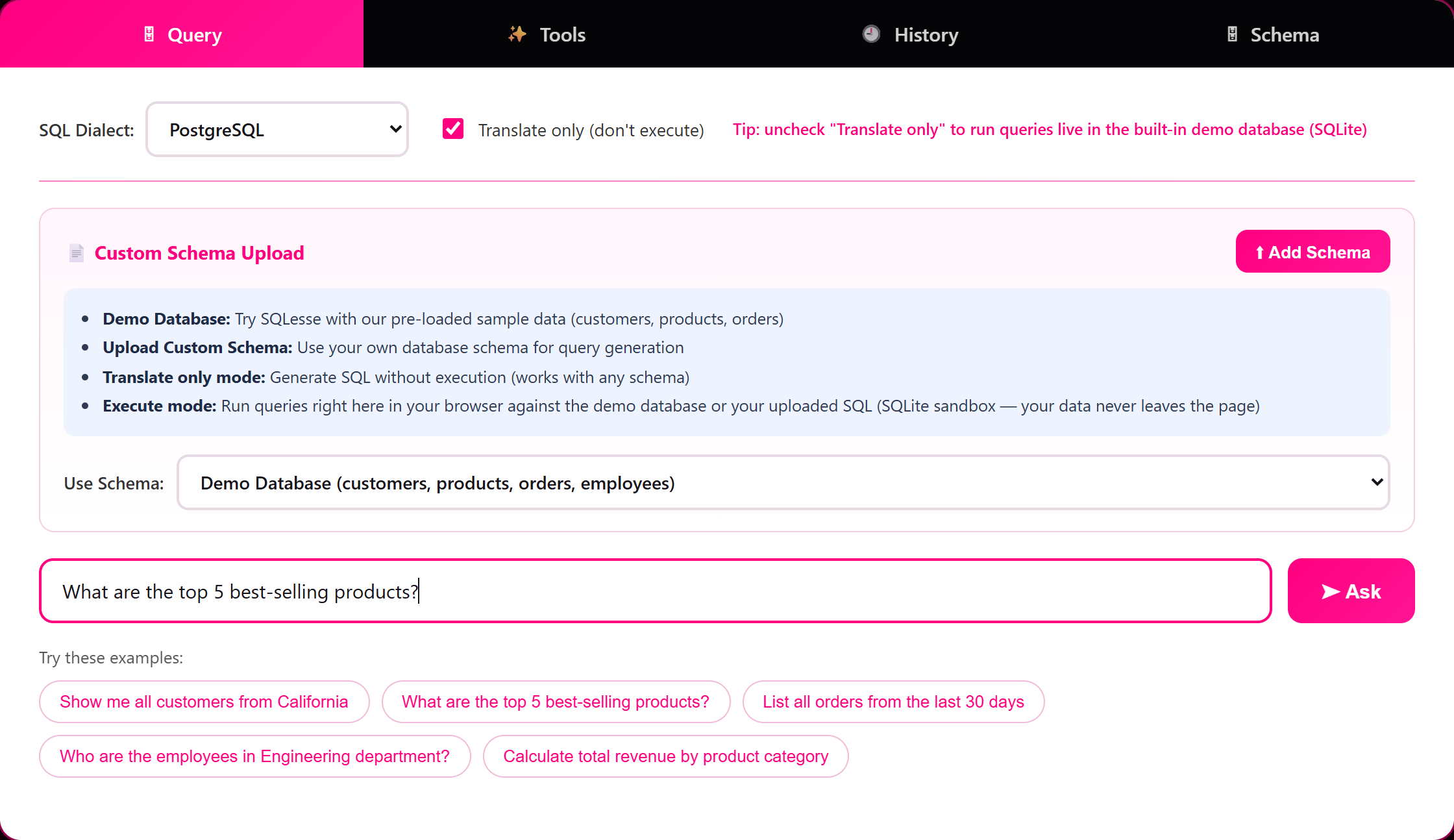
    The SQLesse web app Query tab: dialect set to PostgreSQL, 'Translate only' checked, the Demo Database selected, and the question 'What are the top 5 best-selling products?' typed into the ask box above a row of example questions.
  2. Compare ranked, confidence-scored answers

    When a question can mean more than one thing, SQLesse returns several ranked interpretations, each with a confidence score, the exact SQL, and the assumptions it made — so you pick the right one instead of trusting a silent guess.
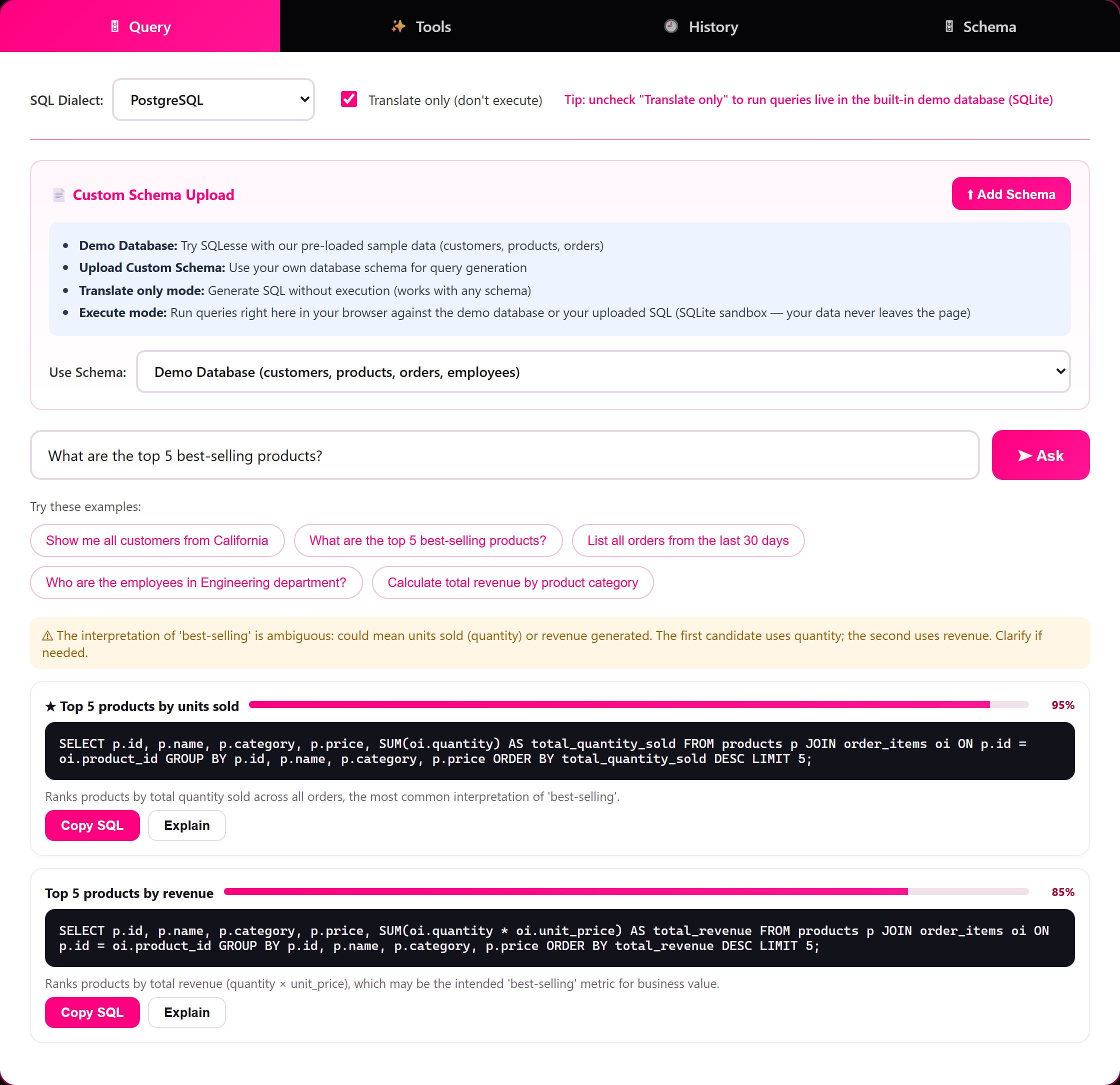
    Results for 'top 5 best-selling products': an amber note explaining that 'best-selling' is ambiguous, then two ranked cards — 'Top 5 products by units sold' at 95 percent and 'Top 5 products by revenue' at 85 percent — each showing its SQL, its assumption, and Copy SQL and Explain buttons.
  3. Run it live, right in your browser

    Uncheck “Translate only” to execute against the built-in demo database (or your own pasted schema) in a private in-browser SQLite sandbox. Your data never leaves the page, and you can export the results as CSV.
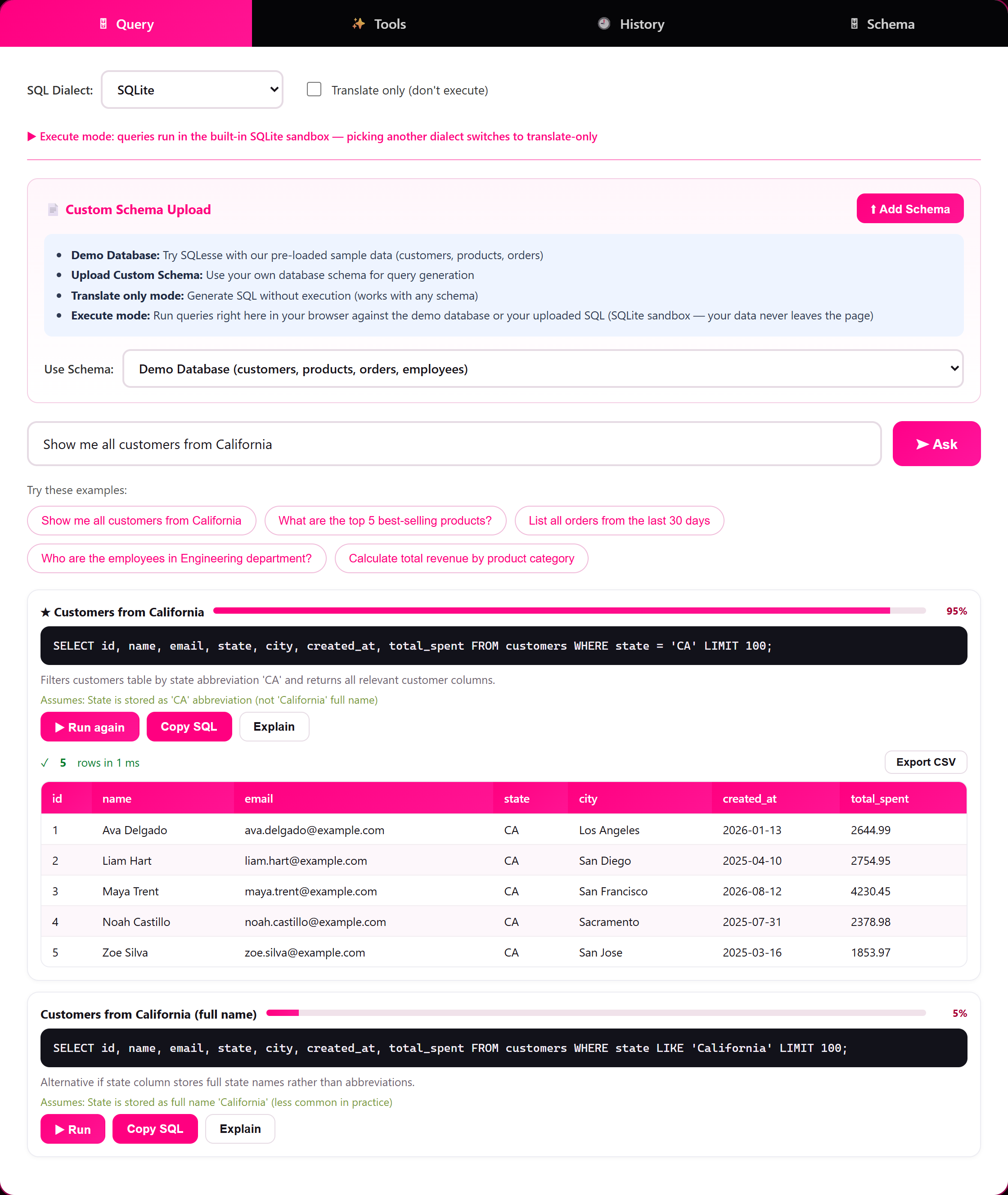
    Execute mode: dialect locked to SQLite, the question 'Show me all customers from California', a 95 percent answer with its SQL, and a results table reading '5 rows in 1 ms' listing five California customers with an Export CSV button.
  4. Explain, optimize, or validate any SQL

    Paste SQL you already have into the Tools tab to get a plain-English explanation, an optimized rewrite for your engine, or a syntax-and-safety check.
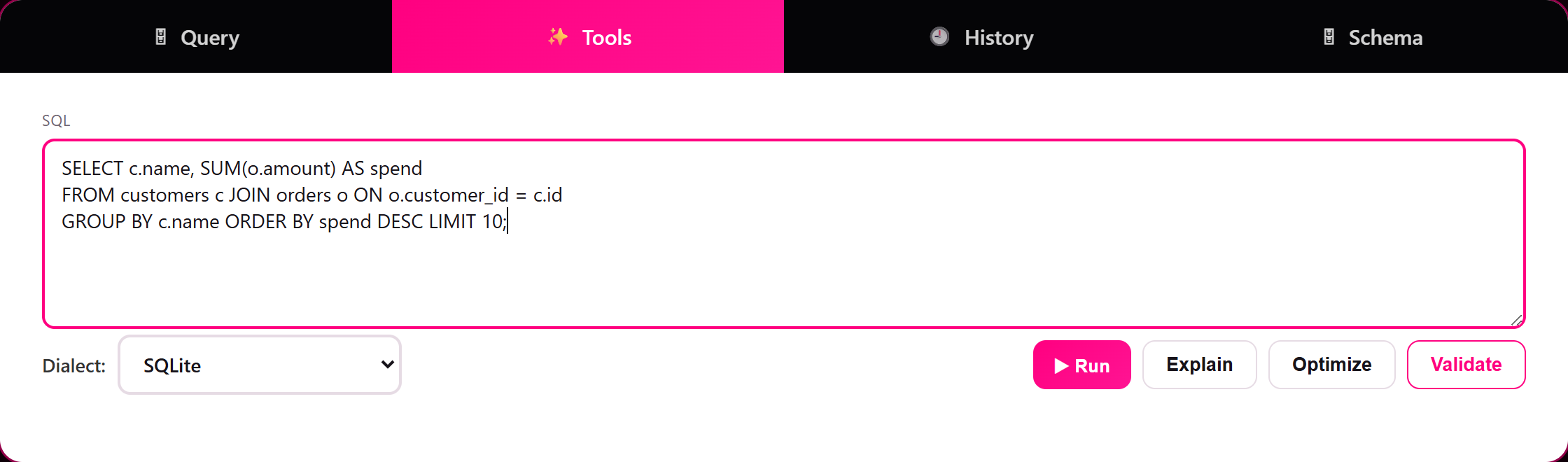
    The Tools tab with a SELECT query pasted into the SQL box, a dialect selector set to SQLite, and Run, Explain, Optimize, and Validate buttons.

In the tools you already use — the Chrome / Edge extension

  1. Pin it and set your defaults once

    From the toolbar you can set a default dialect, turn on read-only mode to block writes, show the inline pill, and open the side panel. It works on Snowflake, BigQuery, Databricks, Azure SQL, Microsoft Fabric, and any page with a SQL editor.
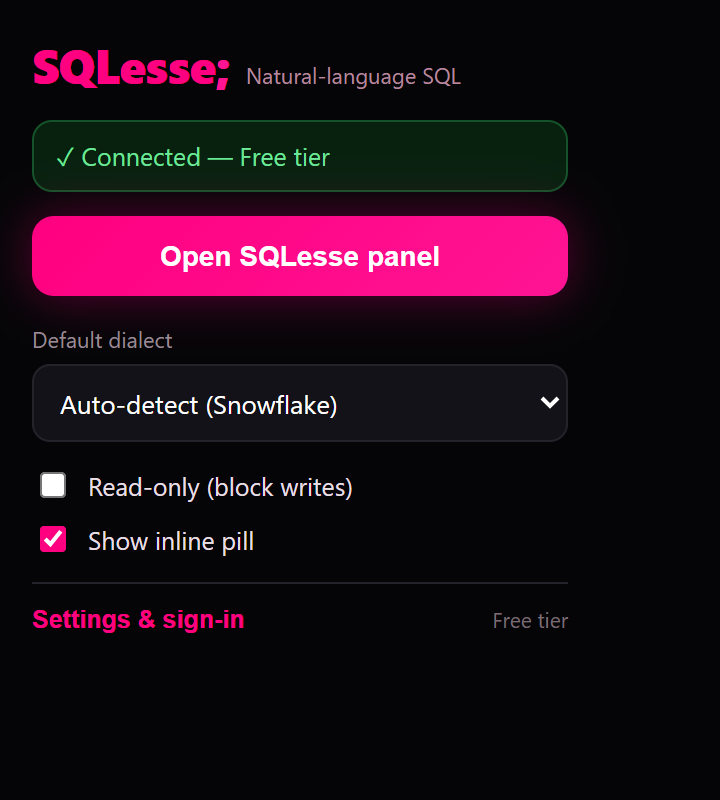
    The extension toolbar popup: a green 'Connected — Free tier' status, an 'Open SQLesse panel' button, a default-dialect selector reading 'Auto-detect (Snowflake)', and toggles for read-only mode and the inline pill.
  2. Ask, then insert into your editor

    The side panel reads the table and column names the page already shows, generates dialect-correct SQL with the same ranked interpretations, and the Insert button writes the query straight into the editor you are signed into — no copy and paste.
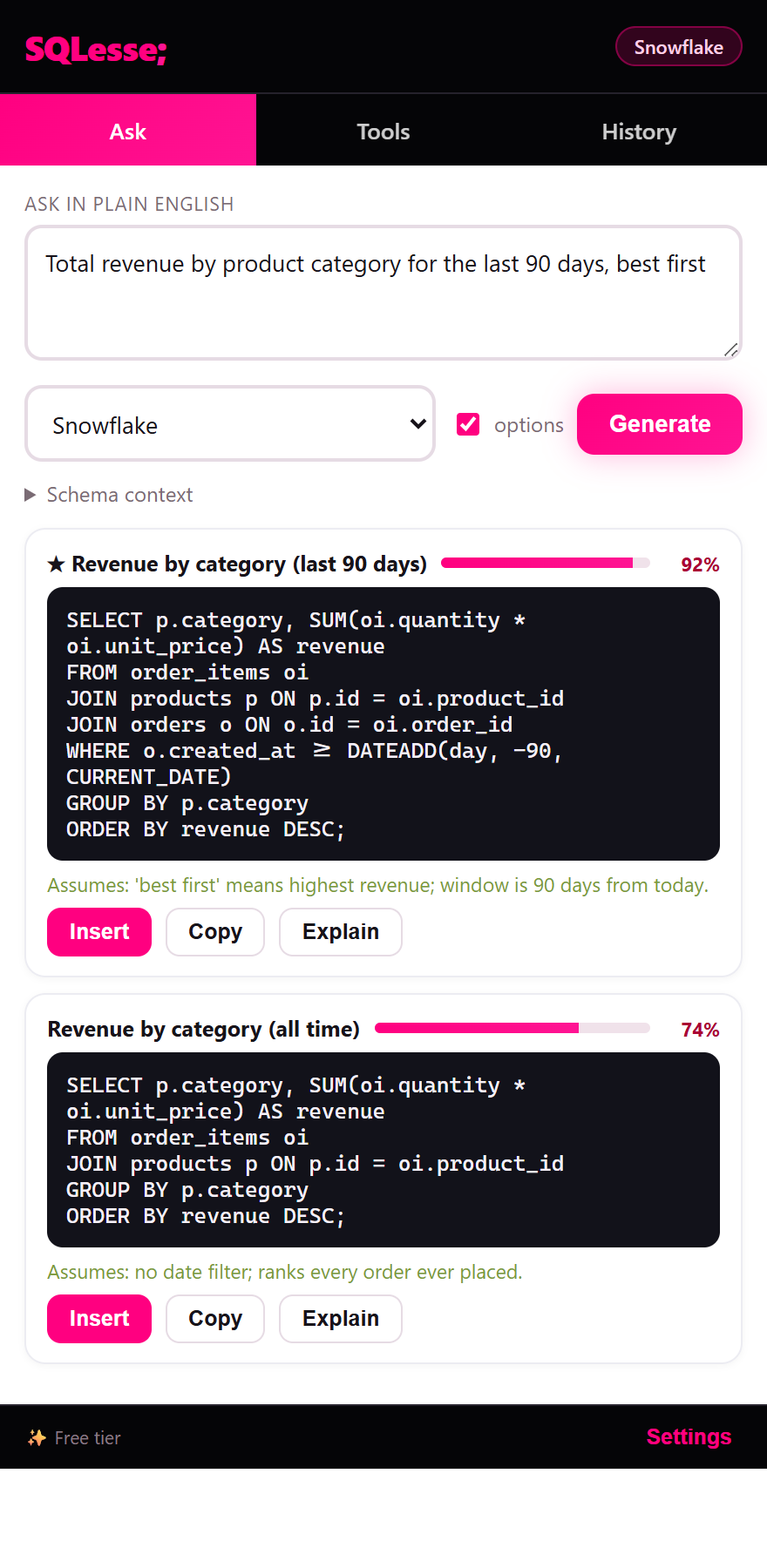
    The extension side panel with a Snowflake context, the question 'Total revenue by product category for the last 90 days, best first', and two ranked interpretations (92 percent and 74 percent) each with its SQL, its assumption, and Insert, Copy, and Explain buttons.